 Gabri
You change your MAC address in Windows by giving the network adapter a new Network Address value, a 12-digit hex number that Windows sends in place of the one burned into the card. Windows has 4 built-in ways to do it: Device Manager, the registry, PowerShell, and random hardware addresses for Wi-Fi.
On November 12, 2026, I read Microsoft's driver and support documentation for each of those routes, plus Intel's rules for which addresses an adapter will accept. Nearly every step below comes from Microsoft's or Intel's own pages, I name the source where one doesn't, and you won't need a MAC address changer download for any of them.
Most guides stop at the Device Manager field. The part they skip is why a new address sometimes doesn't stick, and this page spends real time on that.
If a game banned your PC and that's why you're here, skip ahead to the HWID ban section. A new MAC on its own rarely fixes that.
If you want more privacy on public Wi-Fi, or a fresh address for a network you run, the free Windows settings below cover it, and Saturn isn't the tool for you.
How Do You Find Your MAC Address in Windows?
Your MAC address shows up in Settings, or with one built-in command that works the same on Windows 11 and Windows 10. Write it down before you change anything, so you can tell afterward whether the change took.
- Settings (Windows 11): open Settings, then Network & internet, and select Properties next to your connection. Microsoft points to that page for your connection's details, and the answers on Microsoft Q&A name the line you want: Physical address (MAC).
- Command Prompt:
getmac /v. Microsoft's getmac reference says it lists the MAC address for each network card, and /v adds the verbose details. - PowerShell:
Get-NetAdapter -Physical. Microsoft documents the -Physical switch as listing only physical adapters, so virtual ones stay off the list. - ipconfig:
ipconfig /allprints the full TCP/IP configuration for every adapter, according to Microsoft, and Plugable's guide reads the MAC from each adapter's Physical Address line.
Expect more than one. Every adapter has its own, so a desktop with an Ethernet port and a Wi-Fi card lists two or more. Note the one you use.
Windows writes each address as six pairs of hex digits. Plugable also explains the split: the first three pairs identify the maker, and the last three belong to that one adapter. The same commands come up when you check your HWID, since a MAC address is one of the values software reads to recognize a PC.
How to Change Your MAC Address in Device Manager
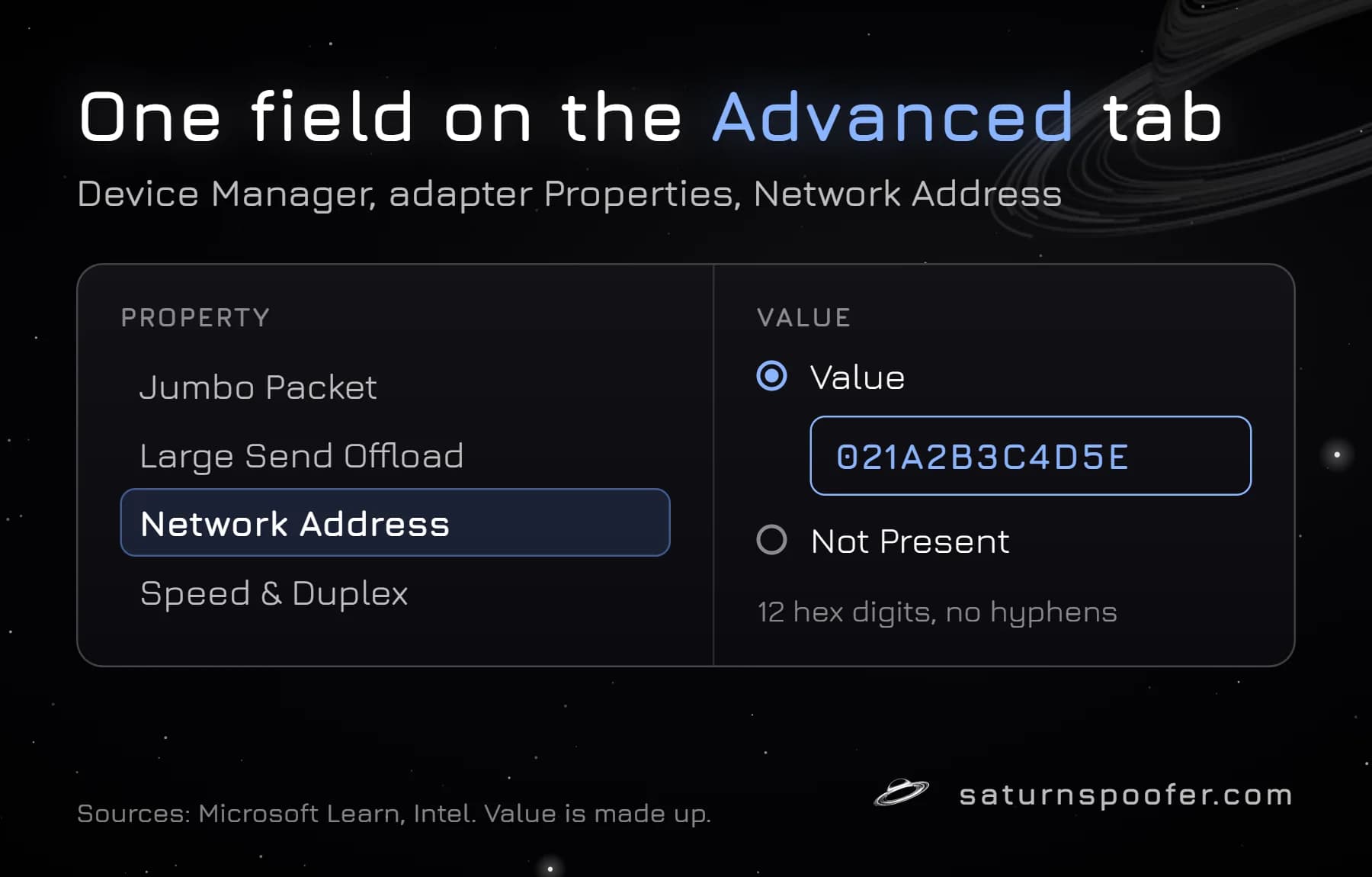
You change your MAC address in Device Manager through the adapter's Network Address property on the Advanced tab. Microsoft lists NetworkAddress as an editable driver keyword that shows up as "Network Address", written as XX-XX-XX-XX-XX-XX with the hyphens optional.
- Right-click Start and choose Device Manager.
- Expand Network adapters, then double-click the Ethernet or Wi-Fi adapter you want to change.
- Open the Advanced tab.
- In the Property list, select Network Address. Intel adapters call the same setting Locally Administered Address.
- Select Value and type 12 hex digits with no separators, for example
021A2B3C4D5E. - Click OK, then run
getmac /vagain to confirm the new address.
Don't see Network Address in the list?
Intel's documentation says a setting that isn't displayed isn't available for that device or that version of Windows, and Microsoft's Set-NetAdapter reference says not all network adapters support setting the MAC address.
To undo the change, open the same property and choose Not Present.
Microsoft's driver documentation describes Not Present as the way an optional value is left unset, and Intel says that with no address entered, the adapter uses its original one.
Which MAC Address Can You Use?
You can use any 12-digit hex MAC address that's unicast, isn't all zeros or all Fs, and isn't already in use on your network. Intel's advanced settings guide for its Ethernet adapters lists all three rules under Locally Administered Address.
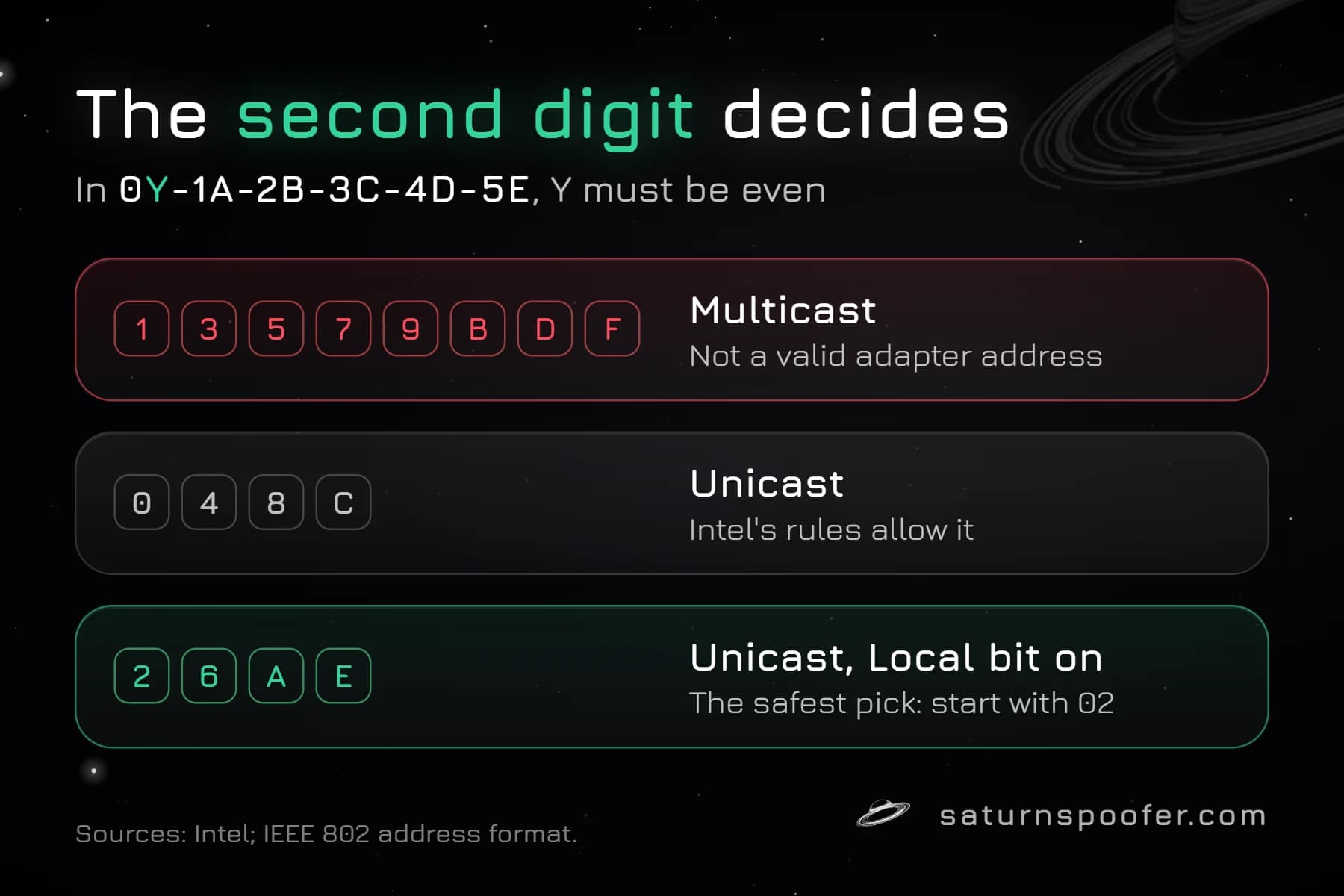
The unicast rule is the one most guides miss. It lives in the second hex digit:
- It has to be even. Intel says an odd second digit makes the address multicast, so in
0Y123456789Athe Y must be 0, 2, 4, 6, 8, A, C or E. - 2, 6, A or E is the safest pick. Those four also switch on the Local bit, the marker in the first byte that says software set the address, not the maker. The IEEE defines that bit, and Android's documentation says its random Wi-Fi addresses set it the same way.
- It can't be a copy. Intel's caution is plain: make sure no other system on the network uses the address.
A local address sits outside every maker's assigned range, so it can't clash with a real card's factory address.
That's why I'd start every new MAC with 02.
Administrators also report Wi-Fi drivers that refuse anything without the Local bit, though I couldn't find a vendor page that says which drivers do it.
Pick one address, write it down, and use it in whichever route you choose.
How to Change a MAC Address in the Registry
You change a MAC address in the registry by adding a string value named NetworkAddress to the adapter's driver key, the same key the Device Manager field writes to. Microsoft's NDIS documentation says drivers look for the NetworkAddress keyword in that key, and that values set on the Advanced tab are saved there too.
- Press Windows + R, type
regeditand press Enter. - Go to
HKEY_LOCAL_MACHINE\SYSTEM\CurrentControlSet\Control\Class\{4d36e972-e325-11ce-bfc1-08002be10318}. Microsoft lists that GUID as the Net class, the setup class for network adapter drivers. - Open the numbered subkeys (0000, 0001 and so on) until you find the one whose DriverDesc value matches your adapter's name in Device Manager.
- Right-click the right-hand pane, choose New, then String Value, and name it
NetworkAddress. - Set its data to your 12 hex digits, without hyphens.
- Disable and re-enable the adapter, or restart the PC, so the driver reads the new value.
Delete the NetworkAddress value later and the adapter goes back to its own address.
Edit only the subkey you matched.
The Class key holds an entry for every network adapter Windows has set up, virtual ones included.
How to Change a MAC Address With PowerShell
You change a MAC address with PowerShell through Set-NetAdapter, Microsoft's cmdlet for adapter settings, which takes the new address through its -MacAddress parameter:
Set-NetAdapter -Name "Ethernet" -MacAddress "02-1A-2B-3C-4D-5E"
Swap "Ethernet" for the adapter name that Get-NetAdapter shows. Microsoft says the hyphens are optional and that the address is also saved in the adapter's network address property without them.
The cmdlet also restarts the adapter for you, unless you add -NoRestart.
It's the quickest of the three manual routes, and it runs into the same adapter limit as the other two.
Random Hardware Addresses for Wi-Fi
Random hardware addresses are the Windows setting that changes your Wi-Fi MAC address for you, with no value to type. Microsoft's support page gives privacy as the reason: the signal your PC sends while it looks for networks carries its MAC address, and places like shopping malls can use that address to track your movement.
- For every network: in Settings, choose Network & internet, open the Wi-Fi page and switch Random hardware addresses on.
- For one network: in the same Wi-Fi page, open Manage known networks, pick the network and switch the same setting on there. Microsoft says the change kicks in on your next connection to it.
The switch only appears if your Wi-Fi hardware supports it.
Microsoft describes it for Wi-Fi alone, so an Ethernet port needs one of the three manual routes.
Here are all four ways side by side:
| Way | Works on | You pick the address? | How to undo it |
|---|---|---|---|
| Device Manager | Adapters whose driver shows Network Address | Yes | Choose Not Present |
| Registry | Adapters whose driver reads NetworkAddress | Yes | Delete NetworkAddress |
| PowerShell | Adapters that support Set-NetAdapter -MacAddress | Yes | Choose Not Present in Device Manager |
| Random hardware addresses | Wi-Fi hardware that supports it | No | Turn the switch off |
Do You Need a MAC Address Changer?
No. For one adapter, a MAC address changer for Windows adds little over the Device Manager field. One free changer that ranks for the term says on its own page, "This software just writes a value into the windows registry," and the value it names is NetworkAddress, the same one from the steps above.
I can only speak for the tool whose documentation I read, but it shows how little a MAC spoofer like that adds: the same value, the same key, the same driver limits. It also asks to run on your PC with access to system settings, which is a lot of trust to hand a stranger for 12 hex digits you can type yourself.
If you play Fortnite, there's one more reason to skip it. Epic lists system utilities that modify network adapters among the common causes of its Hardware Identifiers Warning, which can end in a permanent ban.
Built-in first, download never.
Why Didn't Your MAC Address Change?
Your MAC address didn't change because the driver rejected the value, the adapter hasn't restarted, or something reset the setting. Microsoft's NDIS documentation explains the first one: Windows doesn't validate the NetworkAddress value, so the driver has to, and a driver that finds it out of bounds should use the permanent address instead.
- Odd second digit. Intel's rules make 01 or 03 at the start a multicast address, which an adapter shouldn't use. Start with 02.
- Wrong length or separators. Plugable notes the Device Manager field takes a maximum of 12 characters, so leave the hyphens out there.
- No restart yet. Microsoft says many advanced properties need the adapter restarted before they take effect. Disable and re-enable it, or reboot.
- A fussy Wi-Fi driver. If a Wi-Fi card ignores an even address, try one whose second digit is 2, 6, A or E.
- The driver was reinstalled. Microsoft says advanced properties a driver defines in its INF file have persisted through driver updates since Windows 10 version 1703. Uninstalling the device is different: Windows sets it up again with a fresh driver key, and nothing I read says the old value comes along, so expect the factory address back.
- Windows was reset. A reset sets your adapters up again along with Windows, which can clear the override, so check the address afterward.
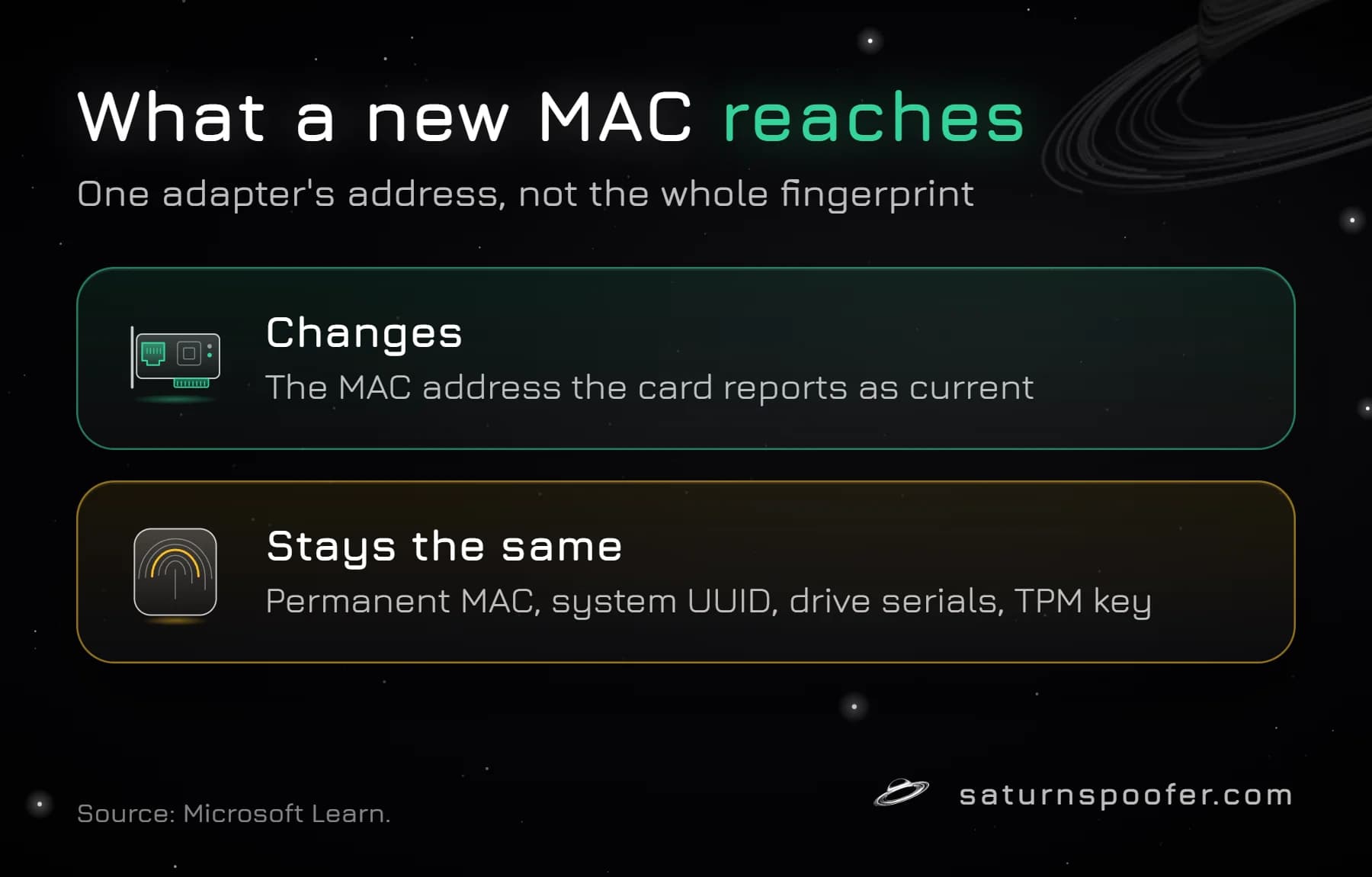
One thing the commands won't show you: the card keeps its original address the whole time. Microsoft's driver documentation lists two separate values, the address the card is currently using and the permanent address encoded in the hardware, and every route on this page changes only the first.
Will a New MAC Address Clear an HWID Ban?
A new MAC address on its own rarely clears an HWID ban, because a hardware ban usually reaches far more than the network card. The identifiers a MAC change can't touch, from the firmware-held system UUID to each drive serial and the TPM key, stay exactly where they were.
Publishers don't list what their anti-cheat reads. Riot's HWID ban article talks about banning a computer's physical components without naming them, and which MAC an anti-cheat asks for, the current one or the permanent one, isn't public either.
A router or a school network sees your MAC directly, which is why a MAC address ban is normally a local network block, not something a game server applies from across the internet. Games that issue a hardware ID ban do it through software running on your PC, and that software can read every identifier Windows exposes, the MAC address being one of many.
That gap is the one we built Saturn for. Saturn is the hardware ID spoofer we build for Windows, and the MAC address is one of the identifiers it changes, along with the CPU, the TPM, RAM, the motherboard and its SMBIOS data, disk serials, the GPU, the monitor's EDID, USB devices, the volume serial and the MachineGuid, all from one loader.
- Temporary mode holds the new IDs only while Saturn is running, with unlimited profiles. Close it and your original IDs come back.
- Permanent mode writes one profile and keeps it after Saturn closes, so the PC stays cleared of the hardware ban.
Here's where it falls short. Saturn doesn't touch an account ban, and we don't claim it does: a banned account stays banned, because that record lives with the publisher, not on your PC.
Some publishers also say they look for tools like it: Epic says Fortnite can detect programs that hide or change a PC's hardware identifiers.
The free trial runs 24 hours, needs an email and no card.
The manual route has its own ceiling. Changing your HWID by hand reaches the Windows-level IDs and a MAC override, while the firmware IDs need new parts.
New MAC for privacy, yes. New MAC for a hardware ban, not on its own.
How to Change MAC Address FAQ
How do I reset my MAC address to the original?
Remove the override and the adapter goes back to its own address. Choose Not Present for Network Address in Device Manager, delete the NetworkAddress value in the registry, or turn off Random hardware addresses for Wi-Fi. The original never left the card, so there's nothing to restore.
Does changing your MAC address affect anything?
Anything that recognized your PC by its old address will treat it as a new device, such as a router's reserved address or allow list, or a hotel's Wi-Fi sign-in page. Apple says the same about its private Wi-Fi addresses: some business networks need updating before they work with them.
Do I need to restart after changing my MAC address?
You need to restart the adapter, not always the PC. Microsoft says many advanced adapter settings only take effect after the adapter restarts, and Set-NetAdapter does that for you. If getmac still shows the old address, disable and re-enable the adapter or reboot.
Can I change my MAC address permanently?
You can keep an override for as long as you like, because it's stored in the registry and survives reboots. You can't change the address encoded in the card from Windows settings: Microsoft documents that permanent address as a separate value from the one in use.
Can I change my MAC address on Android or iPhone?
Both already do it for Wi-Fi. Android's documentation says Android 10 and later use a randomized MAC address by default, and you can turn it off per network. Apple's Private Wi-Fi Address, available since iOS 14 and on by default, gives each network its own address, set under Settings, Wi-Fi, then the More Info button next to the network.
Is a MAC spoofer the same as an HWID spoofer?
No. A MAC spoofer changes one network adapter's address, usually through the same override Windows already exposes. An HWID spoofer changes many identifiers at once, firmware values included, which is what a hardware ban is built from.
Final Thoughts
Changing your MAC address in Windows takes one field in Device Manager and 12 hex digits, with nothing to download. Start the address with 02, restart the adapter, and confirm it with getmac.
If it's a hardware ban you're up against, the MAC address is the smallest part of the problem.
Checked by Gabri on November 12, 2026. Sources: Microsoft Learn pages for Keywords That Can Be Edited, Specifying Configuration Parameters for the Advanced Properties Page, NdisReadNetworkAddress, OID_802_3_PERMANENT_ADDRESS, OID_802_3_CURRENT_ADDRESS, System-Defined Device Setup Classes, Set-NetAdapter, Get-NetAdapter, getmac and ipconfig; Microsoft Support's Wi-Fi page (random hardware addresses) and network settings page; Microsoft Q&A; Intel's Locally Administered Address documentation; Plugable's MAC address guide; Android's MAC randomization documentation; Apple's private Wi-Fi address page; Riot's and Epic's hardware ID pages. Nothing was run on a PC to write this page, and every address shown is a made-up example.